

Hey Terminal: SSH Client
Hey Terminal: SSH Client is made and published by JONGMIN CHOI. AppBrain is an independent app data site and isn't affiliated with JONGMIN CHOI. The app name, icon, screenshots and description belong to JONGMIN CHOI and are shown as published on the App Store.
AppBrain's verdict
- Rating on App Store
- 5.00
- 1 ratings
- Last updated
- October 12, 2026
It doesn't have enough ratings yet to judge what users think.
Rankings
App Store top chartsApp Store Rankings for Hey Terminal: SSH Client
Competitors
Similar apps and more from JONGMIN CHOIMore from JONGMIN CHOI


Releases
Updates seen on the App Store- Version
- 1.3.16
- Launched
- March 2026
No changelog data
User feedback
Ratings and reviews on the App StoreComments on Hey Terminal: SSH Client for iOS
We don't have enough comments to show example comments. Please check back later.
Technology
Found in the app by AppBrain- Price
- Free
- App size
- 14.0 MB
- Content rating
- Low
Technologies used by Hey Terminal: SSH Client
About the app and developer
About Hey Terminal: SSH Client
Hey Terminal: SSH Client is an overall app developed by JONGMIN CHOI.
What is the rating of Hey Terminal: SSH Client?
Hey Terminal: SSH Client is rated 5.00 out of 5 stars, based on one rating ratings.
Is Hey Terminal: SSH Client free?
Hey Terminal: SSH Client is free. The app size is 14.04 MB. The latest version available is 1.3.16. The last update was on October 12, 2026.
What are the requirements for Hey Terminal: SSH Client?
The app has a content rating of Low Maturity. The app has been available on the App Store since March 2026.
Developer information for JONGMIN CHOI
Address:
Store listing
By JONGMIN CHOI, from the App Store

Description by JONGMIN CHOI Written by the developer, not by AppBrain. Click to read.
Your work computer can stay at home or in the office. Connect to it over SSH with Hey Terminal, open Codex or Claude Code there, and continue working on your project from your iPad.
A keyboard-first terminal for iPad
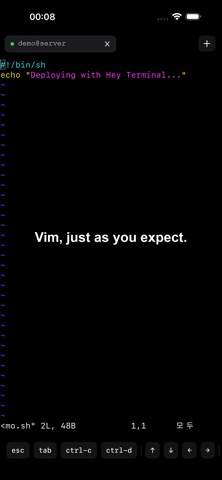
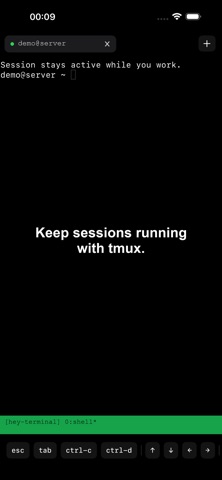
Use a physical keyboard to enter prompts and run commands. Review your project with your remote CLI, edit files with vim, or work in tmux when those tools are available on your computer.
Keep different connections in separate tabs. Create a tab with Command-T, close it with Command-W, and switch with Command-1 through Command-9.
Quick remote work on iPhone
When your computer isn't with you, connect for a short command, check a project file, or send a follow-up request to your remote CLI.
SSH and a local terminal
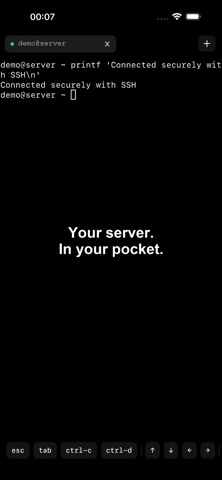
Connect with an SSH command or a configured host alias. Authenticate with a password or SSH key. Use the local terminal for basic file commands and SSH key generation.
Before you connect
You need a computer or server with SSH enabled that you can reach from your device. Remote tools run on that machine, not inside Hey Terminal. Install and configure the tools you want to use there, with any required accounts. Your remote machine must be powered on and accessible.
No app account or subscription required.