

photoglobeAR
photoglobeAR is made and published by inciprocal Inc. AppBrain is an independent app data site and isn't affiliated with inciprocal Inc. The app name, icon, screenshots and description belong to inciprocal Inc. and are shown as published on the App Store.
AppBrain's verdict
Established- Rating on App Store
- 3.83
- 6 ratings
- Last updated
- March 8, 2024
- Size
- 9.91 MB
It doesn't have enough ratings yet to judge what users think.
User feedback
Ratings and reviews on the App StoreComments on photoglobeAR for iOS
We don't have enough comments to show example comments. Please check back later.
Store listing
By inciprocal Inc., from the App Store

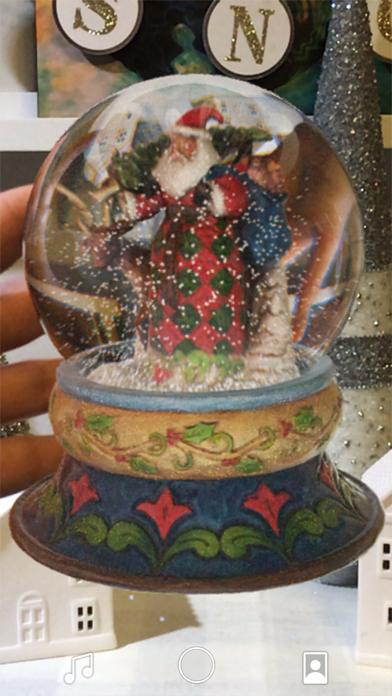
Description by inciprocal Inc. Written by the developer, not by AppBrain. Click to read.
Controls
Tap screen to place the object in space or on targeted area. Touch and hold screen to grab the object. Once placed, touch and hold screen to grab and move the object in the placement plane. Tap the object to bring it back. At any time swipe left or right on the screen to rotate the object.
Help detecting planes
The app uses the camera on your device to find and detect surfaces & planes. Ensure that there is adequate lighting. Move the camera slowly back and forth with your camera pointed directly at surface you are trying to place the object on.
Selfie
Tap the selfie icon to capture an image to display inside of the globe. Tap again to remove.
How can I share my captured images?
You can save a photo to your phone’s camera roll. From there, it’s up to you.
Safety and technology
Found in the app by AppBrain- Price
- Free
- App size
- 9.91 MB
- Content rating
- Everyone
Technologies used by photoglobeAR
Releases
Updates seen on the App Store- Version
- 1.2
- Launched
- December 2018
No changelog data
Alternatives
Similar apps and more from inciprocal Inc.Alternatives to photoglobeAR



More from inciprocal Inc.

Rankings
App Store top chartsApp Store Rankings for photoglobeAR
About the app and developer
About photoglobeAR
photoglobeAR is an entertainment app developed by inciprocal Inc.
What is the rating of photoglobeAR?
photoglobeAR is rated 3.83 out of 5 stars, based on 6 ratings.
Is photoglobeAR free?
photoglobeAR is free. The app size is 9.91 MB. The latest version available is 1.2. The last update was on March 8, 2024.
What are the requirements for photoglobeAR?
The app has a content rating of Everyone. The app has been available on the App Store since December 2018.
Developer information for inciprocal Inc.
Address: