

3D Data Plot is made and published by Yukiko Iwai. AppBrain is an independent app data site and isn't affiliated with Yukiko Iwai. The app name, icon, screenshots and description belong to Yukiko Iwai and are shown as published on the App Store.
AppBrain's verdict
- Last updated
- December 22, 2025
Rankings
App Store top chartsApp Store Rankings for 3D Data Plot
Competitors
Similar apps and more from Yukiko IwaiAlternatives to 3D Data Plot








More from Yukiko Iwai




Releases
Updates seen on the App Store- Version
- 1.4
- Launched
- July 2020
No changelog data
User feedback
Ratings and reviews on the App StoreComments on 3D Data Plot for iOS
We don't have enough comments to show example comments. Please check back later.
Technology
Found in the app by AppBrain- Price
- Free
- App size
- 4.51 MB
- Content rating
- Everyone
Technologies used by 3D Data Plot
About the app and developer
About 3D Data Plot
3D Data Plot is an education app developed by Yukiko Iwai.
User Ratings
The app has no ratings yet.
App Information
3D Data Plot is freely available from the App Store. The app size is 4.51 MB. The latest version available is 1.4. The last update was on December 22, 2025.
Technical Requirements
The app has a content rating of Everyone. The app has been available on the App Store since July 2020.
Developer information for Yukiko Iwai
Address:
Store listing
By Yukiko Iwai, from the App Store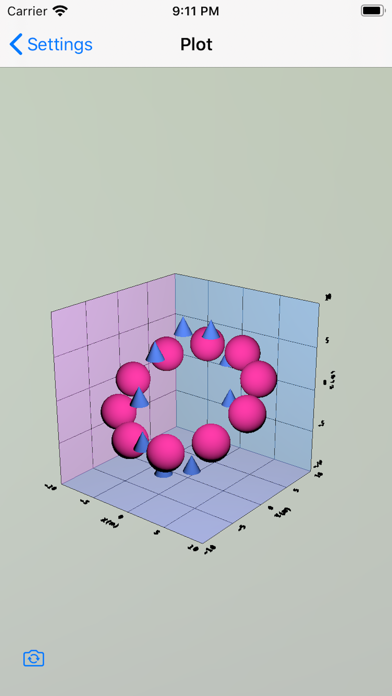
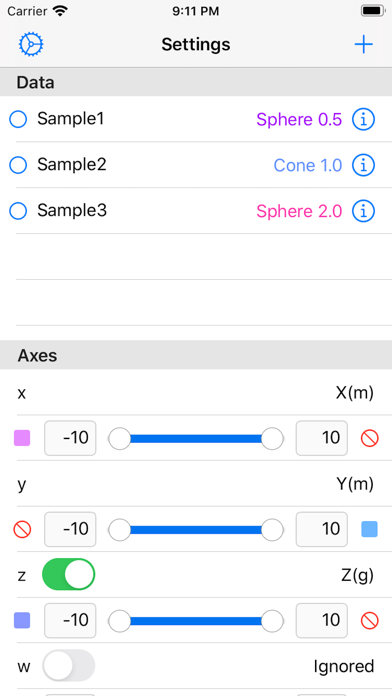
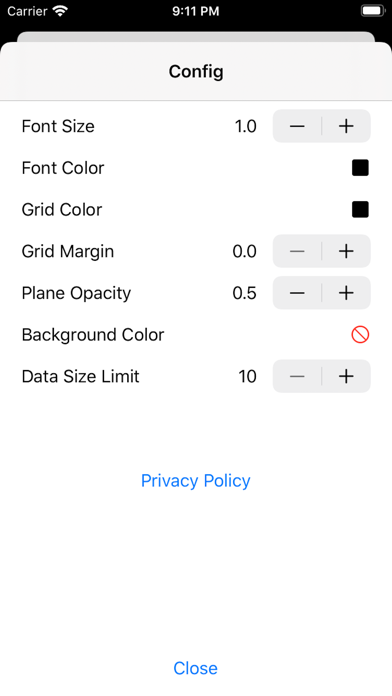
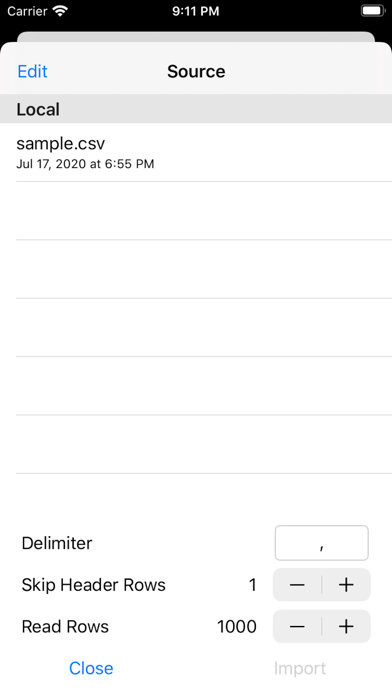
Description by Yukiko Iwai Written by the developer, not by AppBrain. Click to read.
• Interprets delimiters other than commas: tab(\t), space(\s) and so on.
• Imports the 4th element, which is used as density, concentration and so on.
• Imports the value represented with exponential notation "0.0E±0", which is outputted by Excel.
• Internal processing in float type, which has a range of ±1E-38 to ±1E+38 with a precision of 6 decimal digits.
2. You can import CSV file in three ways:
When completing within one device (iPhone/iPad/Mac).
• Create a text file with an application (Notes, Textor, etc.) on the device.
• In the application, tap "share button" and then choose “3dDataPlot”.
Transfer from Mac to iPhone/iPad
• Connect your device (iPhone/iPad) to your Mac via USB cable.
• In Finder on your Mac, select the device in the left sidebar and click "File" on the button bar at the right.
• Drop a text file into “3dDataPlot” folder.
Import from iCloud
• Sign in to iCloud.com from browser (Safari, Chrome, etc.) on your Mac.
• Select “iCloud Drive”.
• Drop a text file into “3dDataPlot” folder.