It doesn't have enough ratings yet to judge what users think.
Gig Message is made and published by
Paul Hartley.
AppBrain is an independent app data site and isn't affiliated with Paul Hartley.
The app name, icon, screenshots and description belong to Paul Hartley and are shown as
published on the App Store.
About Gig Message
Gig Message is a productivity app developed by Paul Hartley.
What is the rating of Gig Message?
Gig Message is rated 5.00 out of 5 stars, based on one rating ratings.
Is Gig Message free?
Gig Message is free. The app size is 12.96 MB. The latest version available is 3.4. The last update was on December 2, 2025.
What are the requirements for Gig Message?
The app has a content rating of Everyone. The app has been available on the App Store since August 2025.
Description by Paul Hartley(from the App Store)
Gig Message is a powerful tool for anyone who sends custom or personalized template messages on a recurring basis.
With Gig Message, you can create, edit, and customize your scripts, organize them into logical workflows, and easily copy them into messages, email, or third-party apps—without hunting through the Notes app or manually re-copying templates.
The app comes pre-loaded with scripts and workflows we use from our own gig food delivery business. You can use them right out of the box, or tailor them to suit your own needs. We’ve found that making it easier to communicate with customers at every stage of the process leads to higher ratings, more tips, and less wasted time waiting at the door.
If you’re using Gig Message for gig deliveries, we recommend starting by scrolling to the bottom of the Messages screen and tapping “Show/Hide Scripts” to preview the wording and format of the templates. Then, try generating a few messages in different delivery stages to see if the inputs, flow, and scripts work for you....and if they don't you can change them to fit you.
The real strength of Gig Message is its flexibility.
• Use the Platforms tab in the bottom navigation bar to create entirely new workflows for anything—dog walking, pool service, car or home rentals, appointment setting, even recurring reminders for family members. The pre-loaded workflow is for Gig Delivery, but you can create as many as you like.
• Use the Inputs tab to create new input fields that can be used in any workflow. The placeholder text you enter becomes the field name, and whatever you type into that field will appear wherever you’ve inserted that placeholder into a script.
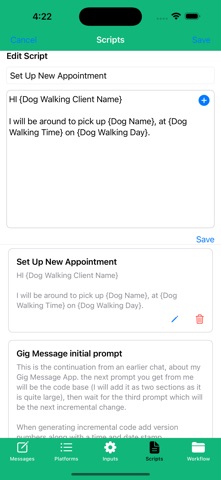
• Use the Scripts tab to create brand-new scripts or edit existing ones. Tap the pencil icon to edit, or tap the trash icon to delete. When creating a script, the “Button Title” is what will appear on the workflow button, and the script content is what appears when you tap it. The plus (+) icon inserts any input field you’ve already created directly into your script at the cursor position.
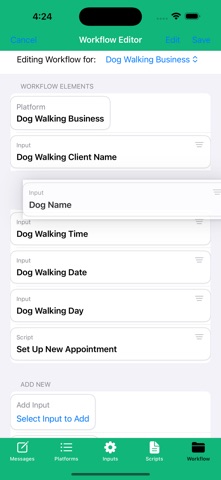
• Use the Workflow tab to put it all together. Select the workflow you want to edit from the “Editing Workflow For” menu. You can add sections (which create quick-scroll buttons), add inputs and scripts, reorder items by dragging, and delete elements by swiping left.
We’d love to hear from you! Email Support@GigMessage.com with your questions, feedback, or suggestions for new features. if you need help creating your own personalized workflows we would love to hear from you and can work with you by email, phone or zoom.
Each subscription will automatically renew 3 days before the expiration date for
the same time period. Subscriptions can be cancelled at any time before the renewal.