

Medieval Madness Stickers
Medieval Madness Stickers is made and published by Pavel Dubov. AppBrain is an independent app data site and isn't affiliated with Pavel Dubov. The app name, icon, screenshots and description belong to Pavel Dubov and are shown as published on the App Store.
AppBrain's verdict
Established- Rating on App Store
- 5.00
- 23 ratings
- Last updated
- April 29, 2021
It doesn't have enough ratings yet to judge what users think.
Rankings
App Store top chartsApp Store Rankings for Medieval Madness Stickers
Competitors
Similar apps and more from Pavel DubovAlternatives to Medieval Madness Stickers




More from Pavel Dubov








Releases
Updates seen on the App Store- Version
- 1.0.1
- Launched
- April 2021
No changelog data
User feedback
Ratings and reviews on the App StoreComments on Medieval Madness Stickers for iOS
We don't have enough comments to show example comments. Please check back later.
Technology
Found in the app by AppBrain- Price
- $0.99
- App size
- 41.2 MB
- Content rating
- Low
Technologies used by Medieval Madness Stickers
About the app and developer
About Medieval Madness Stickers
Medieval Madness Stickers is a stickers app developed by Pavel Dubov.
User Ratings
Medieval Madness Stickers is rated 5.00 out of 5 stars. The rating is based on 23 ratings.
App Information
Medieval Madness Stickers costs $0.99. The app size is 41.18 MB. The latest version available is 1.0.1. The last update was on April 29, 2021.
Technical Requirements
The app has a content rating of Low Maturity. The app has been available on the App Store since April 2021.
Developer information for Pavel Dubov
Address:
Store listing
By Pavel Dubov, from the App Store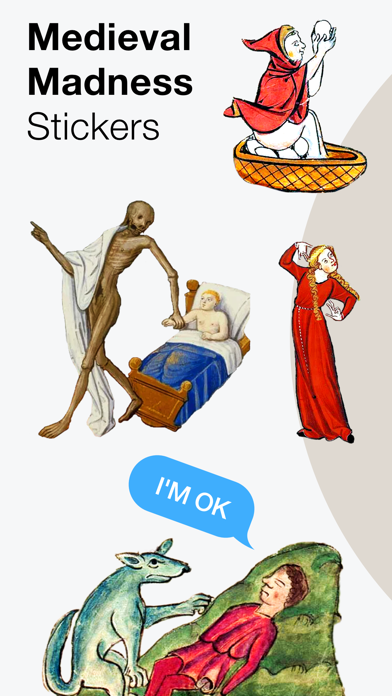
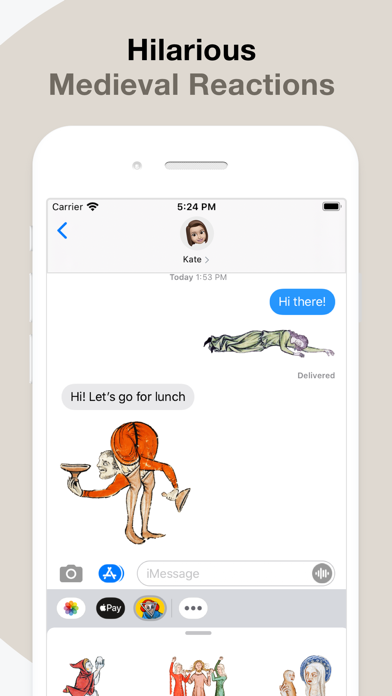
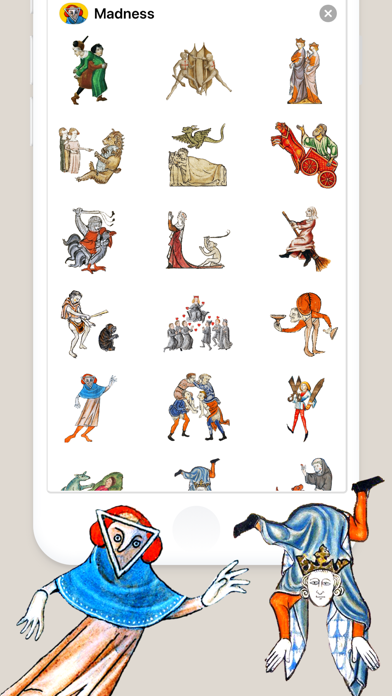
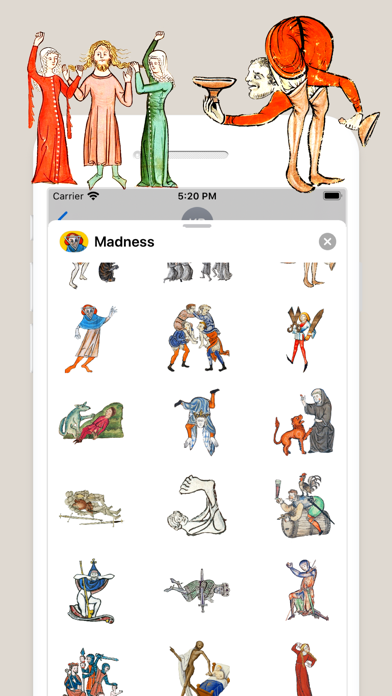
Description by Pavel Dubov Written by the developer, not by AppBrain. Click to read.
HOW TO USE STICKERS:
• Open Messages and tap the Compose button to start a new message. Or go to an existing conversation.
• Swipe left or right over the app drawer to find the one that you want to use.
• Then tap the app to open it.
If you want to add a sticker, touch and hold the sticker, then drag it to the message bubble. The sticker will automatically send when you add it to the message.
MANAGING STICKERS:
• Open Messages and tap the Compose button to start a new message. Or go to an existing conversation.
• Swipe left over the app drawer and tap the More button .
• Tap Edit button to manage or reorder stickers. Or swipe left over the app to Delete.
If the app won't open, re-open Messages app (swipe-up and open again).
EXTRAS:
Don't forget to check out our other stickerpacks!
Enjoy!