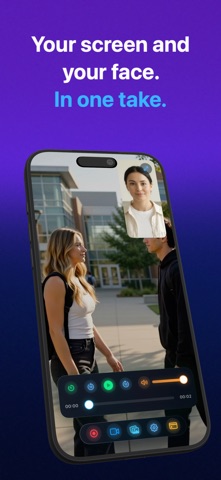
Reel Screen Recorder Capture is a photo & video app developed by Arte Soft Ltd.
User Ratings
Reel Screen Recorder Capture is rated 5.00 out of 5 stars. The rating is based on one rating ratings.
App Information
Reel Screen Recorder Capture is FREE to download. The download size is 36.24 MB. The latest version available is 1.3.3. The last update was on September 21, 2026.
Technical Requirements
The app has a content rating of Everyone. The app has been available on the App Store since February 2026.
Description
Record your screen, camera and audio together on iPhone, iPad and Mac. Reel Screen Recorder helps you create tutorials, app walkthroughs, product demos, lessons and presentations with your face alongside the action.
FREE, AND NOT A TRIAL Recording is free and needs no account. There is no watermark on any recording, no time limit and no export limit, at any tier. The free version shows an advert between sessions. Pro removes the adverts and unlocks Source (Native) quality — your device's full resolution — as a subscription or a one-time purchase.
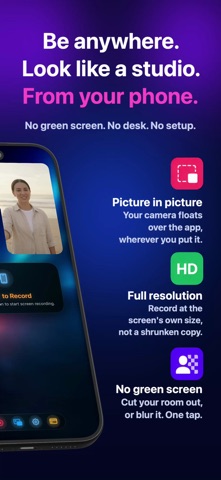
iPhone + iPad • Play a video inside Reel and record it together with your camera for reactions, commentary and guided walkthroughs. The in-app video player is available on iPhone and iPad. • Choose a floating camera overlay or native Picture in Picture (PiP) on iOS and iPadOS. Position your camera so your face and content stay visible. • Choose recording quality and lock the orientation for consistent framing. Save MP4 recordings to your photo library.
KEEP YOUR VOICE AND SYSTEM SOUND SEPARATE Record microphone and system audio as two separate tracks in the same video file. This gives you more control when editing: adjust your narration without changing the sound from your Mac, or work on the system sound independently. If you prefer a combined track, enable the single-track audio option before recording.
CHANGE THE SCENE WHILE YOU RECORD Your camera background can be more than a still image. Choose a video and let it play behind you while you record. Switch camera backgrounds during recording to move between scenes without ending the take. Remove or blur your surroundings, or replace them with an image or video. Adjust fit, fill and framing to suit your presentation.
Mac Choose a floating camera overlay or a separate webcam window. Remove, blur or replace your camera background and adjust the framing. Control microphone and system audio separately, choose the windows or apps to capture, and save your recording as an MP4. Use keyboard shortcuts to start and stop recording.
Each subscription will automatically renew 3 days before the expiration date for
the same time period. Subscriptions can be cancelled at any time before the renewal.