

SmileTalker is made and published by YONEKAWA Hideki. AppBrain is an independent app data site and isn't affiliated with YONEKAWA Hideki. The app name, icon, screenshots and description belong to YONEKAWA Hideki and are shown as published on the App Store.
AppBrain's verdict
- Last updated
- September 16, 2025
Rankings
App Store top chartsApp Store Rankings for SmileTalker
Competitors
Similar apps and more from YONEKAWA HidekiAlternatives to SmileTalker





More from YONEKAWA Hideki


Releases
Updates seen on the App Store- Version
- 5.3
- Launched
- March 2014
No changelog data
User feedback
Ratings and reviews on the App StoreComments on SmileTalker for iOS
We don't have enough comments to show example comments. Please check back later.
Technology
Found in the app by AppBrain- Price
- Free
- App size
- 6.12 MB
- Content rating
- Everyone
Technologies used by SmileTalker
About the app and developer
About SmileTalker
SmileTalker is an utilities app developed by YONEKAWA Hideki.
User Ratings
The app has no ratings yet.
App Information
SmileTalker is freely available from the App Store. The app size is 6.12 MB. The latest version available is 5.3. The last update was on September 16, 2025.
Technical Requirements
The app has a content rating of Everyone. The app has been available on the App Store since March 2014.
Developer information for YONEKAWA Hideki
Address:
Store listing
By YONEKAWA Hideki, from the App Store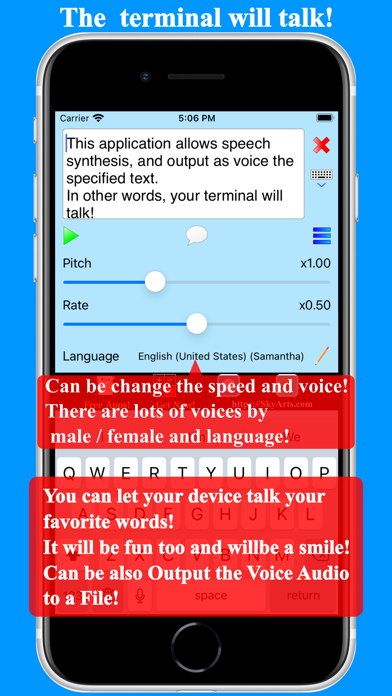


Description by YONEKAWA Hideki Written by the developer, not by AppBrain. Click to read.
In other words, your Terminal will Talk!
It will be fun too and will be a Smile!
Note: Manner mode does not sound.
Note: Can be Save the Speech as an Audio file!
You will be for the following operation.
+ Speak on my behalf
+ Study of pronunciation
+ Read aloud a text that was read at the QR code
+ Create a QR code with the text
It is possible to be registered text, in various ways will be.
For example, it will be that it is possible to deal with various situations if you speak instead at the time of travel abroad.
The registration text, for that to classify in the folder, you want to import is possible, the various apps should sharp in the way of thinking soon.
For reading and creating QR code can be, can also use that leverage the QR code.
Further, since it is possible to send to such other apps text entered, you will be utilized various.
Voice to be output can be modified language, pitch and rate.
- Basic usage -
Enter the text in the text input area at the top of the screen at the beginning.
Then start the speech by pressing the Play button.
Stop the speech by pressing the Play button again in speech.
- Utterance possible language -
+ English (Australia, Ireland, South Africa, United Kingdom, United States)
+ Japanese (Japan)
+ Chinese (China, Hong Kong SAR China, Taiwan)
+ French (Canada, France)
+ Spanish (Mexico, Spain)
+ Portuguese (Brazil, Portugal)
+ German (Germany)
+ Arbic (Saudi Arabia)
+ Czech (Czech Republic)
+ Danish (Denmark)
+ Dutch (Belgium, Netherlands)
+ Finnish (Finland)
+ Greek (Greece)
+ Hindi (India)
+ Hungarian (Hungary)
+ Indonesian (Indonesia)
+ Italian (Italy)
+ Korean (South Korea)
+ Norwegian (Norway)
+ Polish (Poland)
+ Romanian (Romania)
+ Russian (Russia)
+ Slavak (Slovakia)
+ Swedish (Sweden)
+ Thai (Thailand)
+ Turkish (Turkey)
- The description in the screen -
There is a text input area at the top of the screen. It is used text to speech that enter here.
The following buttons are available on the right side of the text input area.
+ Clear button ... To clear the text of the text input area.
+ Hide the keyboard ... Hide the software keyboard.
There are such as the following buttons below the text input area.
+ Play button ... Speech the text entered in the text input area. You can stop the speech by pressing in speech.
+ Registered text button ... Insert the registered text to the text input area.
+ Menu button ... Display a menu popup.
+ Pitch ... Change the pitch of speech.
+ Rate ... Change the rate of speech.
+ Language ... Change the language of speech.
There are the following items on the menu.
+ Register Text ... Register the selected text.
+ Send Text ... Sent to other apps such as the text you have selected.
+ Generate QR code ... Generate the QR code using all or part of the text.
+ Read QR code ... Reads the QR code, enter as text.
+ Help ... Display a help screen.
The Registered text settings screen, you can register the text.
By you must have registered the text, you will be able to insert the text immediately.
Because that can be imported by providing a text from a file in CSV format, can register at once a large amount of data.
Please look at the support page for details.