

MyNotebook - simple note app -
It doesn't have enough ratings yet to judge what users think.
MyNotebook - simple note app - is made and published by fumio ueda. AppBrain is an independent app data site and isn't affiliated with fumio ueda. The app name, icon, screenshots and description belong to fumio ueda and are shown as published on the App Store.
About MyNotebook - simple note app -
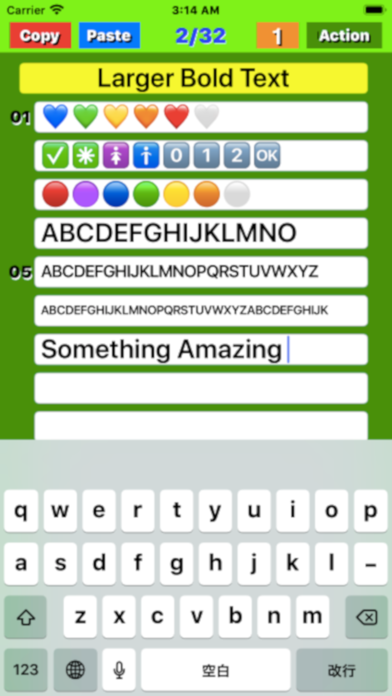
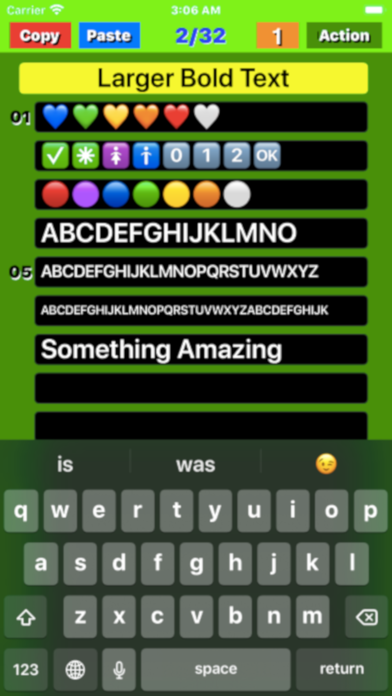
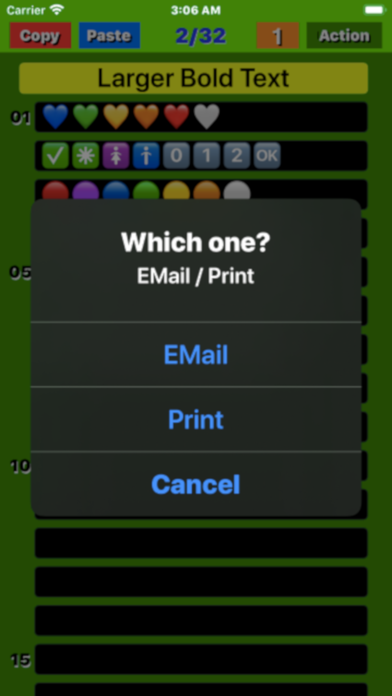
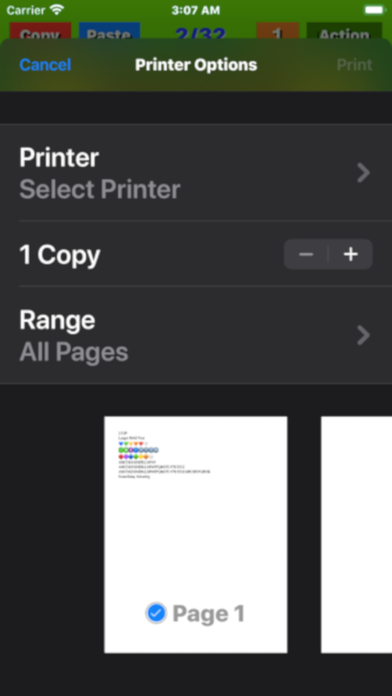
MyNotebook - simple note app - is a productivity app developed by fumio ueda.
What is the rating of MyNotebook - simple note app -?
MyNotebook - simple note app - is rated 4.84 out of 5 stars, based on 43 ratings.
Is MyNotebook - simple note app - free?
MyNotebook - simple note app - is free. The app size is 5.01 MB. The latest version available is 3.2. The last update was on November 3, 2025.
What are the requirements for MyNotebook - simple note app -?
The app has a content rating of Everyone. The app has been available on the App Store since July 2016.
More data about MyNotebook - simple note app -
| Price | Free |
| Rating | 4.84 based on 43 ratings |
| Ranking | Not ranked |
| Version | 3.2 |
| App size | 5.01 MB |
| Suitable for | Everyone |
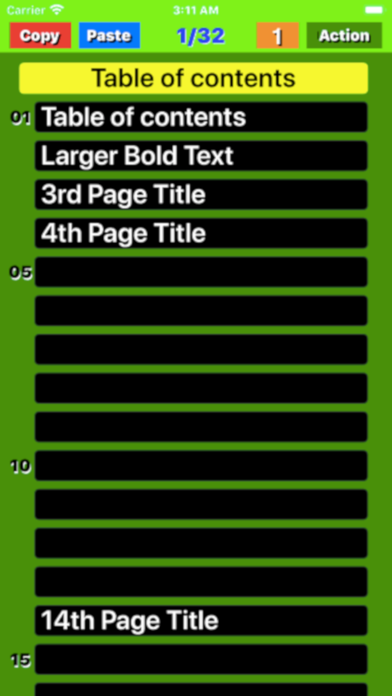
Screenshots
Alternatives to MyNotebook - simple note app -






More from fumio ueda


Changelog of MyNotebook - simple note app -
No changelog data
Developer information for fumio ueda
Address:
Comments on MyNotebook - simple note app - for iOS
We don't have enough comments to show example comments. Please check back later.
App Store Rankings for MyNotebook - simple note app -
Technologies used by MyNotebook - simple note app -
Frequently asked questions about MyNotebook - simple note app -
Is MyNotebook - simple note app - free?
Yes. MyNotebook - simple note app - is free on the App Store.
Is MyNotebook - simple note app - still available?
Yes. MyNotebook - simple note app - is on the App Store, and the last update we saw was on November 3, 2025.
How large is MyNotebook - simple note app -?
MyNotebook - simple note app - is 5.01 MB.
Is MyNotebook - simple note app - suitable for children?
App Store rates the content of MyNotebook - simple note app - as suitable for everyone.
How do people rate MyNotebook - simple note app -?
MyNotebook - simple note app - scores 4.84 out of 5 stars, from 43 ratings on the App Store.
Who made MyNotebook - simple note app -?
MyNotebook - simple note app - was developed by fumio ueda. It is listed in the productivity category on the App Store.
What are the best alternatives to MyNotebook - simple note app -?
People looking at MyNotebook - simple note app - also look at these productivity apps: In Your Note, Fast Notes - Memo and lists, FloatyMemo, Mental Note Lite ๛, Easy Notebook - simple notes -.