
Panorama.
Panorama. is made and published by Limit Point Software. AppBrain is an independent app data site and isn't affiliated with Limit Point Software. The app name, icon, screenshots and description belong to Limit Point Software and are shown as published on the App Store.
AppBrain's verdict
Established- Rating on App Store
- 2.33
- 3 ratings
- Last updated
- January 22, 2024
It doesn't have enough ratings yet to judge what users think.
Rankings
App Store top chartsApp Store Rankings for Panorama.
Competitors
Similar apps and more from Limit Point SoftwareAlternatives to Panorama.








More from Limit Point Software








Releases
Updates seen on the App Store- Version
- 2.0.3
- Launched
- March 2012
No changelog data
User feedback
Ratings and reviews on the App StoreComments on Panorama. for iOS
We don't have enough comments to show example comments. Please check back later.
Technology
Found in the app by AppBrain- Price
- Free
- App size
- 18.3 MB
- Content rating
- Everyone
Technologies used by Panorama.
About the app and developer
About Panorama.
Panorama. is a photo & video app developed by Limit Point Software.
What is the rating of Panorama.?
Panorama. is rated 2.33 out of 5 stars, based on 3 ratings.
Is Panorama. free?
Panorama. is free. The app size is 18.34 MB. The latest version available is 2.0.3. The last update was on January 22, 2024.
What are the requirements for Panorama.?
The app has a content rating of Everyone. The app has been available on the App Store since March 2012.
Developer information for Limit Point Software
Address:
Store listing
By Limit Point Software, from the App Store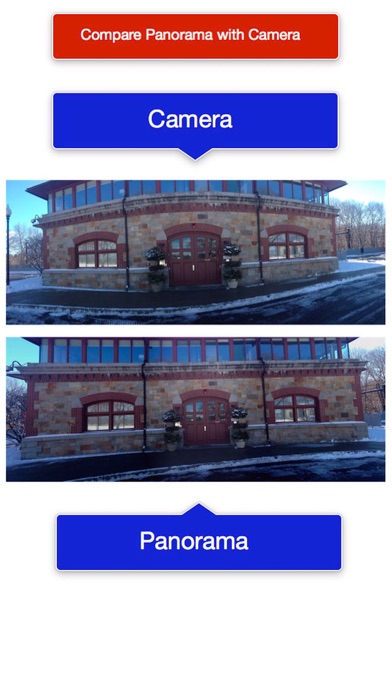
Description by Limit Point Software Written by the developer, not by AppBrain. Click to read.
Panorama enables the creation of rectangular panoramas:
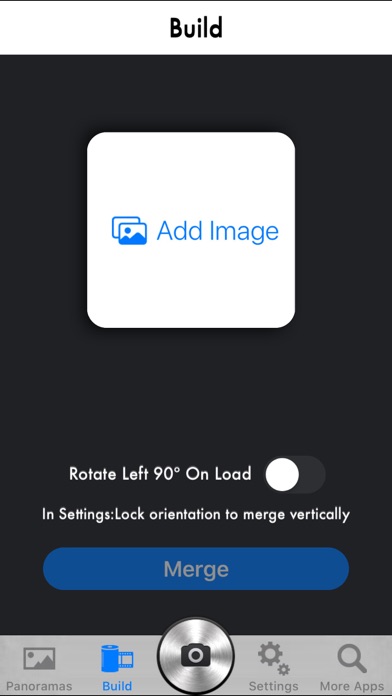
The 'Build View' provides a stitcher for an arbitrary set of photos that have overlapping regions for horizontal or vertical stitching (For vertical select 'Build Vertical' to rotate input by 90º left and then result by 90º right, since the stitcher only stitches left to right).
A rectangular panorama is vertical & horizontal stitching combined. (See the third video preview titled 'Rectangular Panorama' for an example.)
In this way you can build two vertically registered panoramas, and then use those to build a horizontally registered panorama (or vice verse): as long as you are careful the photos are aligned for registration.
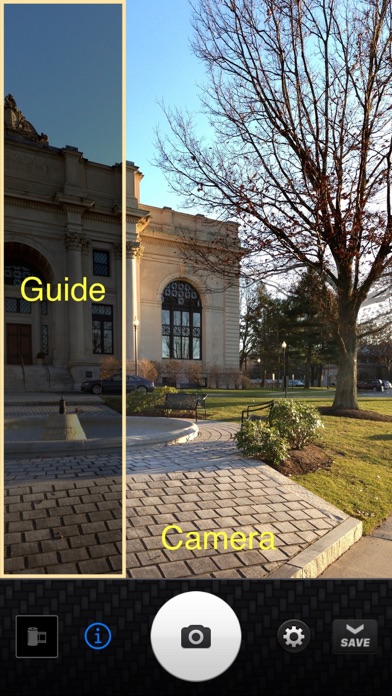
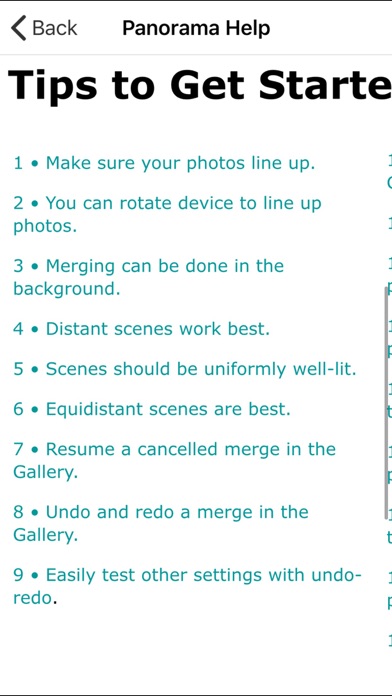
The camera view provides an overlay view of the previous photo taken so that the next photo can be properly aligned with the previous photo. This is important for proper registration when stitching the photos together.
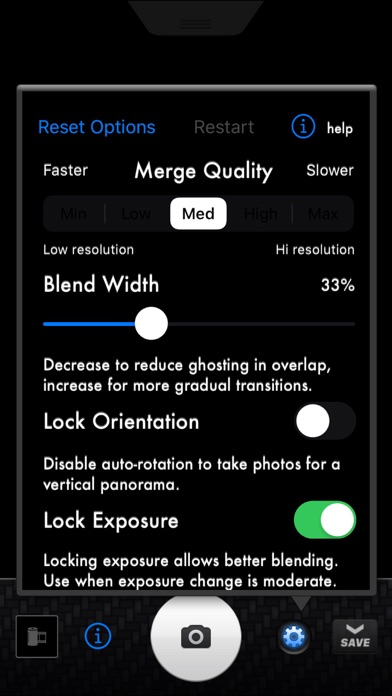
You can create vertical panoramas also: to do this you need first TURN ON the option to 'lock orientation' in the Settings view.
Then the camera guide works as expected for taking your photos for a vertical panorama: In other words you need to prevent the camera view from taking photos in landscape mode. Then the registration guide will appear at the BOTTOM of the view, as opposed to the left side.
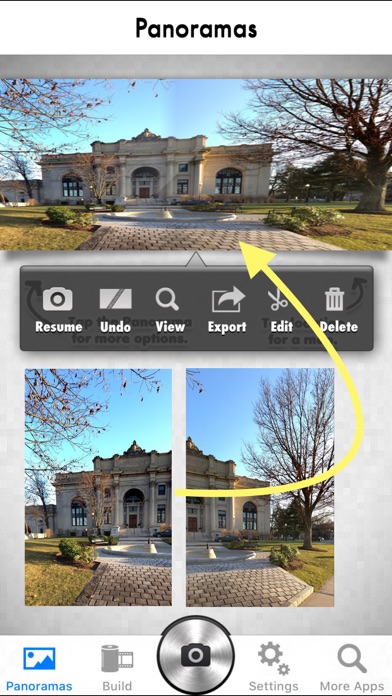
• Use the integrated image editor, in the options menu for all panoramas in the gallery. Enhance, add text, crop and more.
Image editing options: Enhance (Hi-Def, Illuminate, Color Fix), crop, rotate, brightness, contrast, saturation, sharpness, draw, text, redeye, whiten, blemish and meme.
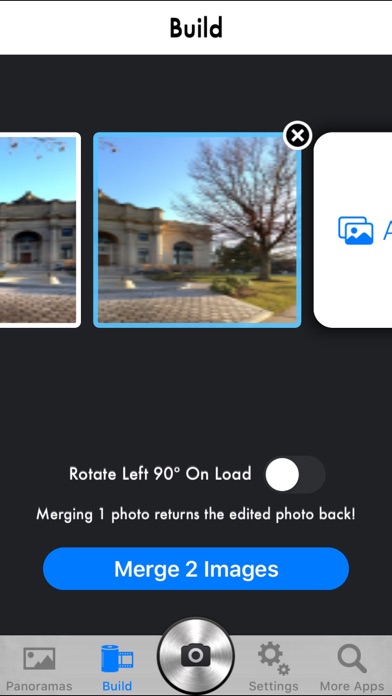
• Build custom panoramas or creatively blend images into photo montages from the camera roll of Photos using the Build pane.
• Use the Build pane to merge two or more vertical overlapping panoramas to easily create 2x2 or 3x3 rectangular panoramas.
• Shoot a scene and save the photos into the gallery for merging later if you prefer. This allows you to save time and battery during a shoot.
• Undo and redo a panorama in the gallery to try different settings or options, such as exposure matching or merge quality.
• High resolution of the 2 and 3 image stitchers essentially doubles and triples your camera's field of view.
• As you shoot pictures they are collected into a sliding pocket drawer, so you can review what you shot at any time, and delete to retake photos.
• Use the "film roll" button in the camera pane to save all the photos currently in the drawer to the gallery, without merging them.
• If you cancel the current merge, you can always resume it anytime from the gallery.
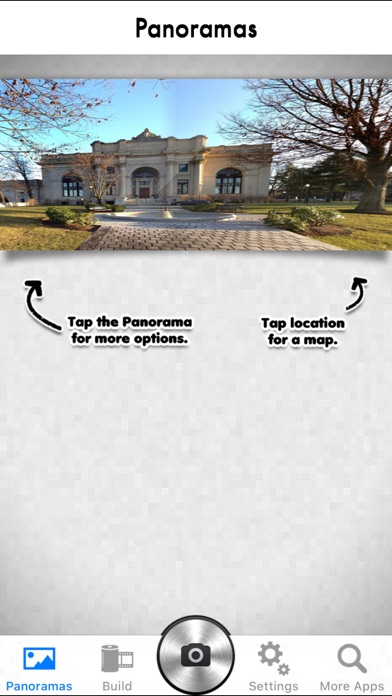
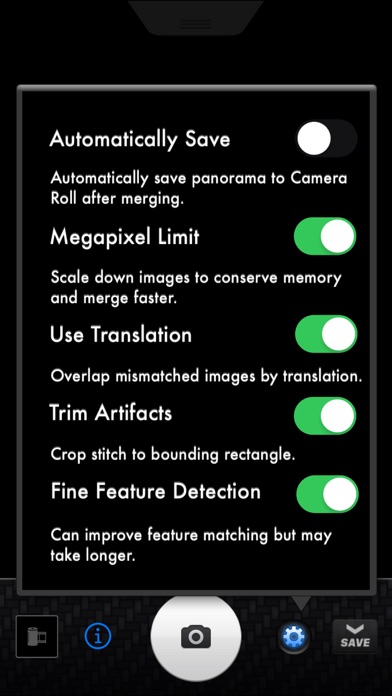
• Panoramas are saved to the gallery automatically when completed, and optionally also to the Photos library.
• In the gallery any saved panorama can be resumed.
• You can undo panoramas, separating them into a film roll of the original photos. Originals can always be saved to the Photos library.
• Export and manually preprocess the photos in your photo shoot in any other image editor, then reload from the Photos library and stitch them together in the Build pane.
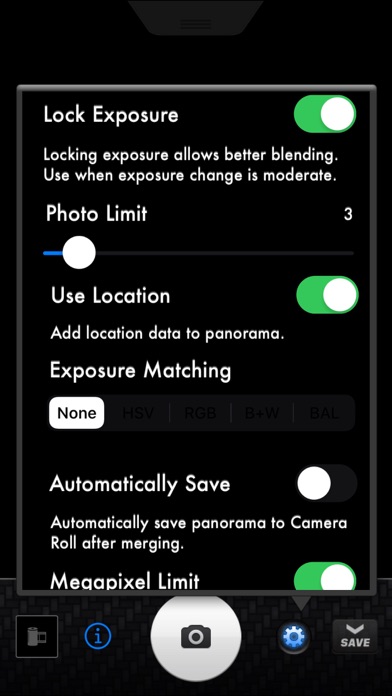
• Adds location data to your panoramas so you remember exactly where you shot them. View the location where the panorama was made on a map in the gallery.
• In the gallery you can always undo and then redo a stitch, say for experimenting with different options or image editing.
• Time consuming stitching can be deferred by saving your photo shoots in the gallery.
• Run in the background as you use your device with other apps or put the screen to sleep with the hold button. You'll be notified when the stitch is done.
• The photo alignment guide ensures you properly align your photos for the best stitching results, and facilitates acquiring photos for the Mac version of Panorama.